






Photo culling for high-volume photographers
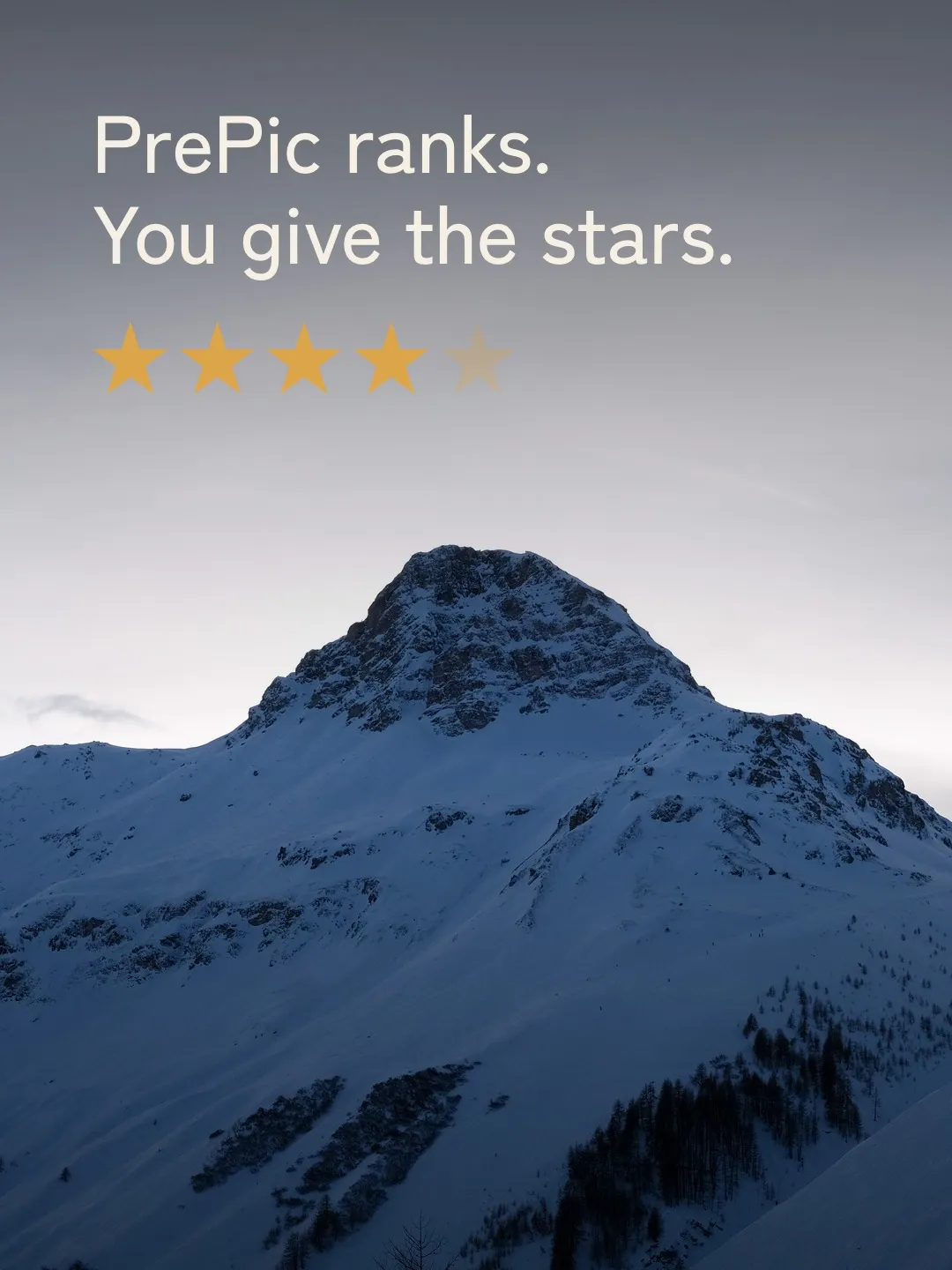
PrePic groups similar photos, ranks the photos in each set by sharpness, open eyes and expression, and points out possible issues. The ratings are yours.
In early testing · Apple silicon · macOS 14 or later
Choose your photos before you edit
From the card to your photo app, in six steps.
Step 1
Open a shoot folder
From a card or a drive. PrePic reads the whole shoot on your Mac and divides it into chapters.

Step 2
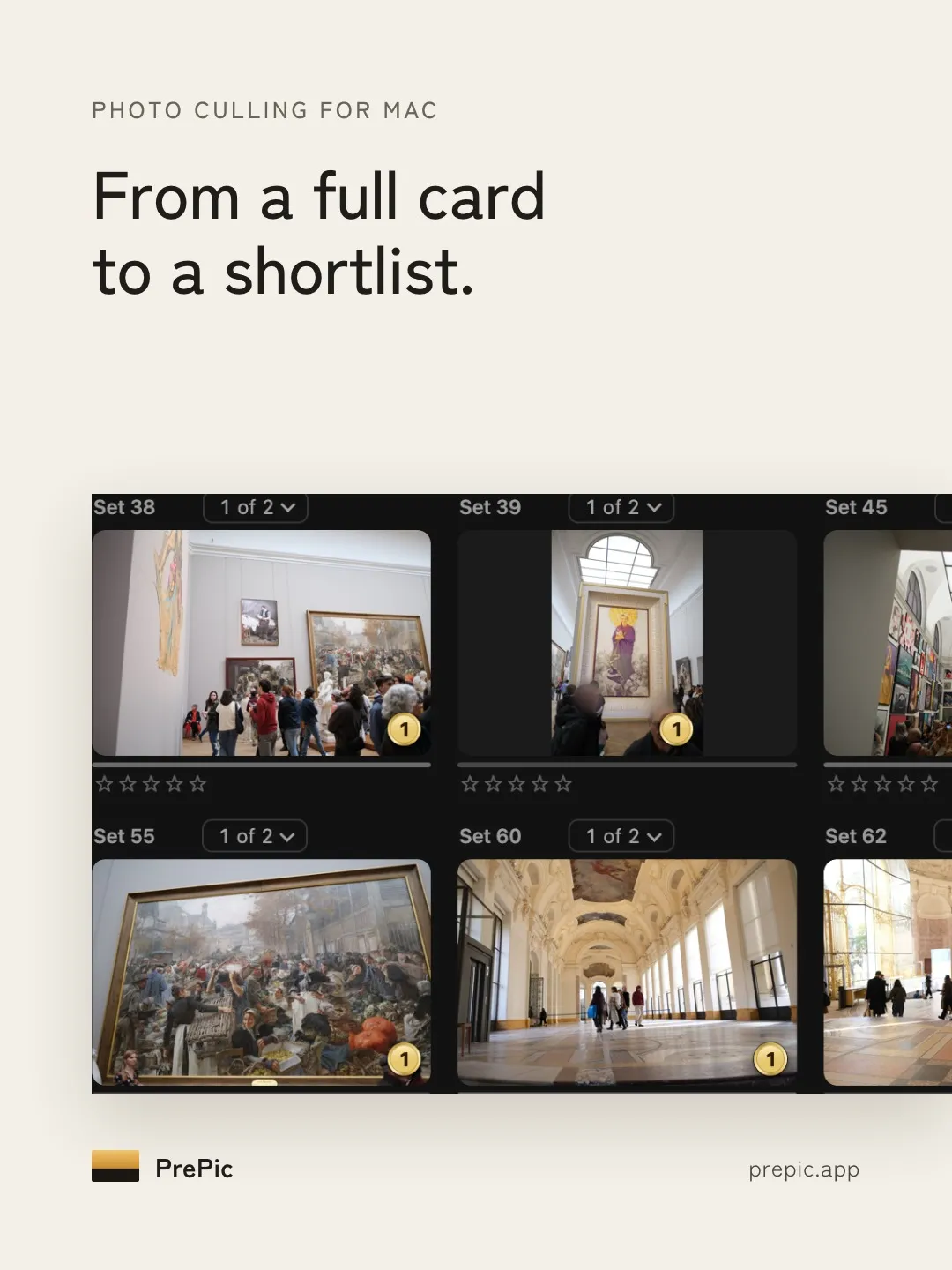
Similar photos become sets
Bursts and repeated frames taken moments apart are grouped together, based on a similarity threshold and time gap you set.

Step 3
Explainable ranks, within each set
Each photo gets a score from 0 to 100 and a place among the photos of its set. Compare shows how far each frame is behind the top one, and why.


Step 4
Eyes and focus, side by side
Compare zooms frames together to 100%, faces aligned, so half-closed eyes or soft focus stand out at a glance. A photo that may be soft, or whose eyes may be closed, is marked as a possible issue, never hidden.


Step 5
Look closer, and rate from the keyboard
Open a photo large and zoom up to 400%. Stars 1–5, Pick P and Reject X are one key each.


Step 6
Apply, and import as usual
Apply shows every change before it writes stars and flags as XMP, which photo apps can read. Undo Apply puts every file back exactly as it was.


What’s included
Sets of similar photos
Bursts and repeated frames taken moments apart become sets, with controls for the similarity threshold and the time gap that separates one moment from the next.
Explainable scores and ranks
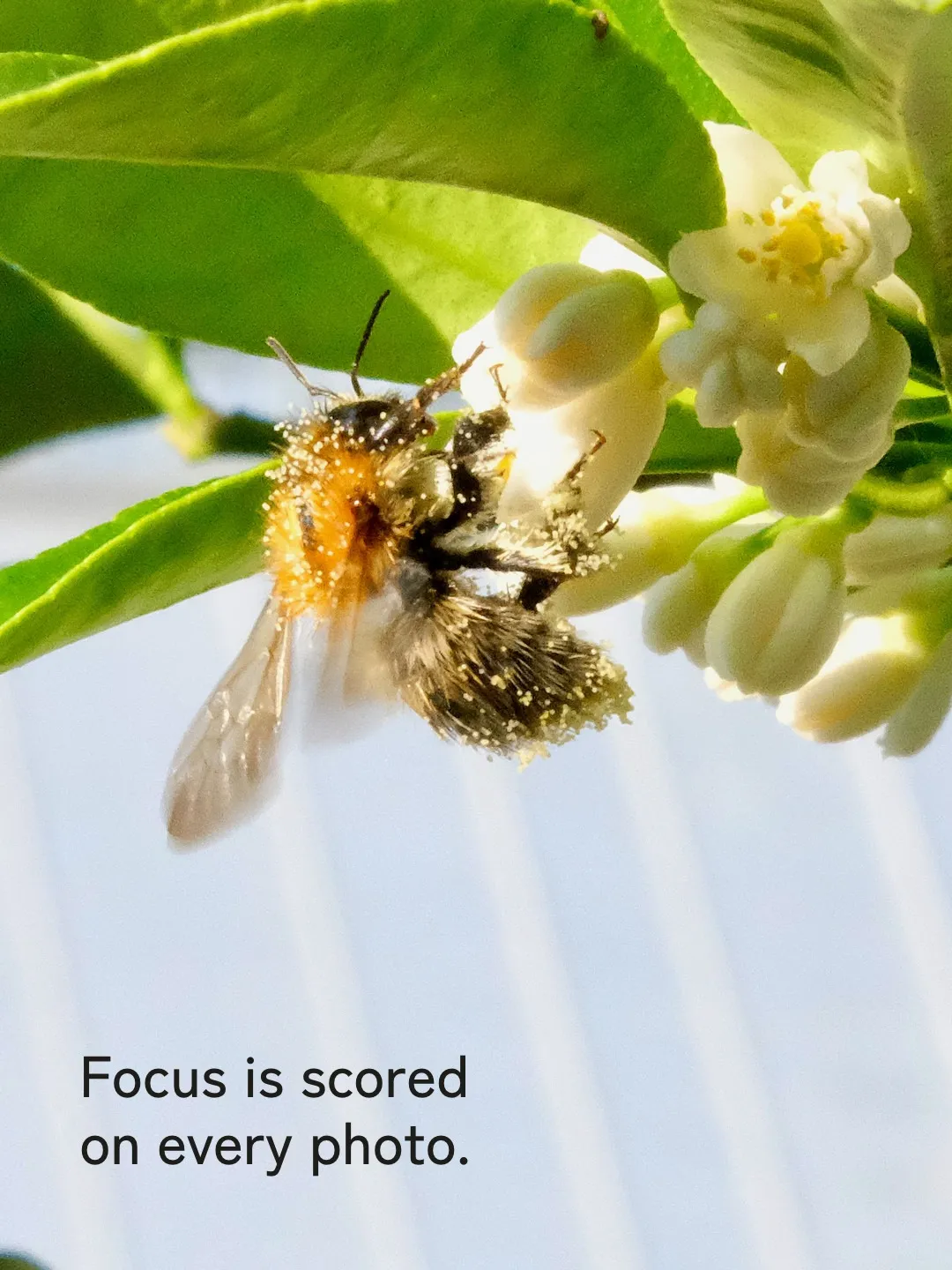
Each photo is scored on focus, open eyes, expression and face direction, and ranked within its set, with the reasons: how far it trails the top photo, and on which measure. You can adjust how much each one counts.
Possible issues
PrePic marks photos where eyes may be closed, nothing is in focus or a face is turned away. You choose which checks run and how strict each one is.
Compare
Up to 8 photos side by side, zoomed together to 100% on their faces.
Face zoom
Open a photo large, with its camera, lens and exposure shown above it, and zoom to its main face with one key. Zoom goes up to 400%.
Keyboard culling
Stars 0 to 5, Pick, Reject and Unflag from the keyboard, with auto-advance, and undo and redo for every decision.
Filters
The top 1, 2 or 3 of each set, or photos by stars, flag, person or possible issue.
People
Faces grouped by person within each shoot, on your Mac, so you can show one person’s photos, or their best-scoring photo in each set.
RAW, JPEG and HEIF
RAW from Canon, Nikon, Sony, Fujifilm, Panasonic, OM System and Olympus, Leica, Pentax, Phase One and Hasselblad, plus DNG. A RAW and its same-named JPEG or HEIF count as one photo.
Ratings photo apps read
Apply writes stars and Pick/Reject flags as XMP. Lightroom, Capture One and most other photo apps read the stars; Lightroom Classic 13.2 and later also reads the Pick and Reject flags of RAW files.
Undo Apply
Apply backs up what it changes in each file, and Undo Apply restores each file exactly. Photographs are never moved, renamed or deleted.
Runs on your Mac
Grouping, scoring and face analysis run on your Mac. Your photographs leave it only if you attach them to a problem report.
Made for big shoots
Sport, travel, weddings and events: the days you come home with thousands of frames. PrePic handles the first pass, so you start editing from a shortlist instead of the whole card.



The release
See the Pricing page for prices.
Frequently asked questions
Will PrePic change my original photographs?
PrePic never moves, renames, or deletes a photograph, and never changes its image data. RAW and HEIF files are never modified; their ratings and flags go in an .xmp sidecar beside each one. In a JPEG, they go in the XMP block inside the file: Apply rewrites only that block, and Undo Apply restores the original file exactly. Nothing is written until you confirm an Apply or an Undo Apply.
Does PrePic edit photos?
No. PrePic doesn’t edit, retouch or generate images, and never changes how anyone looks. It shows your photos, previews of them for browsing, and face crops for comparing eyes and expression.
How does it work with Lightroom?
Review the shoot in PrePic and assign your star ratings and Pick/Reject flags. Press Apply, review the summary, and confirm. Then import the folder into Lightroom Classic, keeping the .xmp sidecars beside the RAW files; version 13.2 or later reads the stars and Pick and Reject flags from them on import. A JPEG carries its rating and flag inside the file, and its stars are imported the same way. For photos you imported earlier, use Metadata ▸ Read Metadata From File; it replaces the catalog’s settings for those photos, edits included.
Does it work with other apps?
Yes. The stars are written in the standard XMP rating that Capture One, Bridge, Photo Mechanic, darktable and most other photo apps read. Lightroom Classic 13.2 or later reads Pick and Reject flags from RAW sidecars, and Bridge shows a Reject as rejected.
Does PrePic choose photos for me?
No. PrePic groups similar photos, scores and ranks the photos in each set, and lists possible issues such as eyes that may be closed or nothing in focus. You decide every star, Pick and Reject.
Do my photos leave my Mac?
Only if you attach them to a problem report. Grouping, scoring and face analysis run on your Mac. PrePic sends no usage data; a problem report leaves your Mac only when you press Send.
Does PrePic recognize people?
Within one shoot. People groups the faces of each shoot by person, on your Mac, so you can filter the shoot by who is in each photo and name specific people. People does not infer anyone’s name, age, sex or emotional state; the only names are the ones you enter. Face data and names belong to that shoot and never carry over to another. People runs automatically in every shoot, and turning it off in a shoot deletes that shoot’s face data and names. With Find people in every shoot turned off in Settings ▸ People, it runs only in shoots where you start it. People privacy.
Which Mac do I need?
PrePic is built for Macs with Apple silicon (M1 or later), running macOS 14 Sonoma or later. It does not support Intel Macs or Windows.
Can I use PrePic now?
Yes, through the PrePic Beta Program. Until PrePic is released, photographers in the program use the full app on their own shoots, free of charge. PrePic Beta Program.
Our Instagram
@prepic.app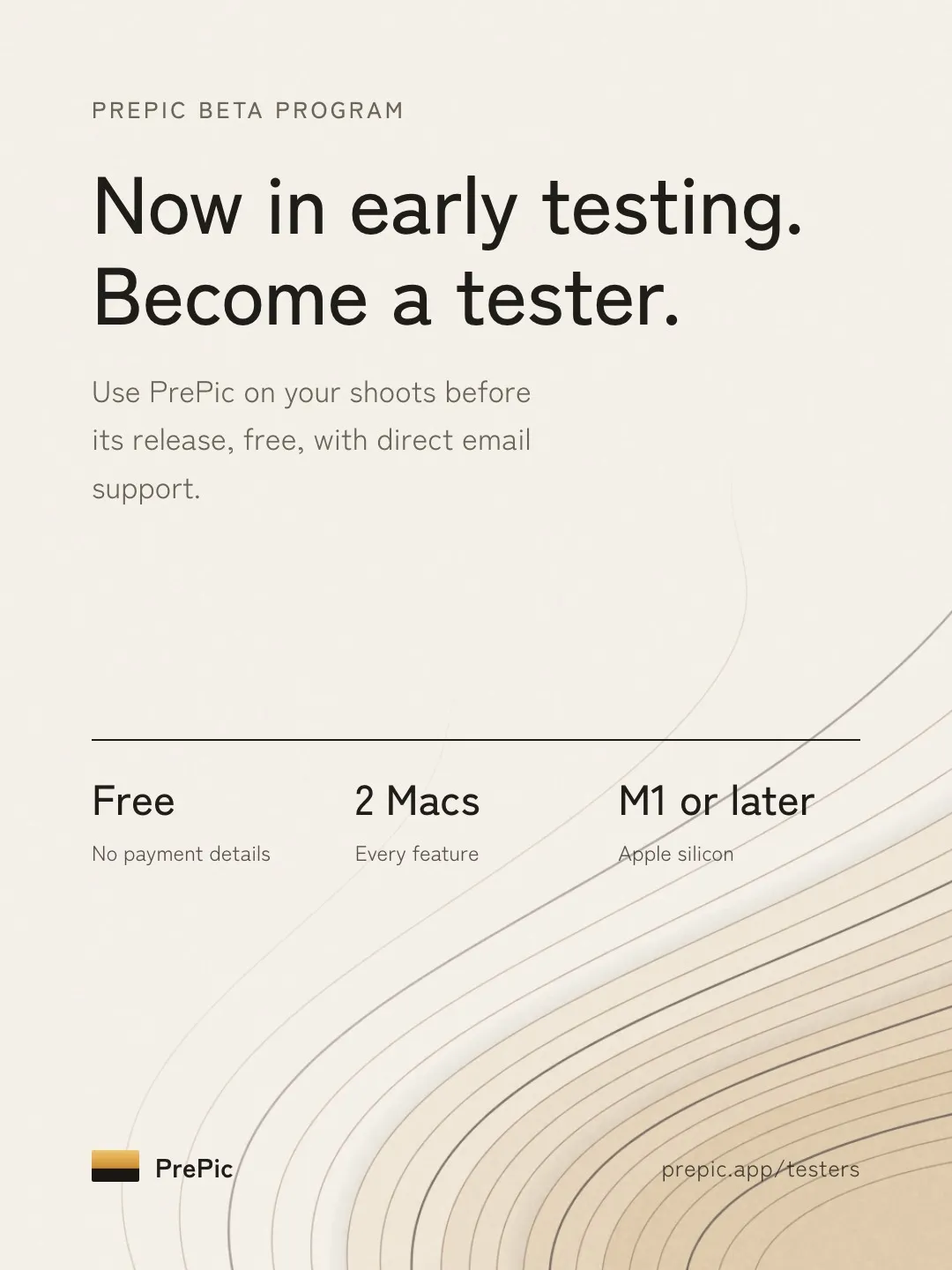


PrePic Beta Program
PrePic isn’t out yet. Until it is, a limited number of photographers are using the full app on their own shoots, free of charge.
Become a testerApple silicon · macOS 14 or later